Friday, 6 October 2017

Customize CRM Portal Default Sign-up


Customize CRM Portal Default Sign-up

Literally it’s good news for who were all working on CRM poral. CRM portal version 8.2 and earlier you can’t customize the Signup. With dynamics 365 July release, now we can change the Signup using custom attributes like NRIC/FIN, Mobile No, email id etc. of CRM portal using Azure AD-B2C.
Azure AD-B2C is an Azure service that does not require an actual subscription, can be started for free, and can go live in Production within certain service limits.

Pros of Azure AD-B2C:
1.    The entire logon experience can be configured from the Azure Portal
2.    Azure AD- B2C will do email verifications for local logons

3.    It can be configured for two factor authentications

4.    Multiple identity providers can be selected as part of the configuration

5.    On selecting a single identity provider, the portal will go directly into the identity provider’s logon page

6.    Azure AD-B2C login pages can be customized
7.    Fields that have to be on a sign-up page can also be selected in the Azure portal

Steps to Customize Logon Screen:

1.  Azure Portal View – Identity Providers Selection (can sign in using email address instead  of user id & External identity like Facebook,Google,Azure etc)

  customer engagement portals


2. Select the data that will be part of sign up attributes(can use any custom attribute)


customer engagement portals

3.Customized Logon page

 customer engagement portals

4.The new sign out experience will sign out from the identity provider and is configurable for each identity provider.


customer engagement portals

Monday, 14 August 2017

Trigger DatePicker Onchange Event in CRM Portal

In CRM portal the onchange event is will be working usual jQuery method for text field but when it comes to date fields we cant call the onchange event using the Date field id rather we can call this using Div Control.

I got a requirement that when user select future date, should alert that "future date is not allowed".

for example if user select the future date for "Date Of Birth" field it should alert the user to select past date.

Step 1:

Step 2: Open Developer tool (Press F12) and select console tab

Step 3: Type $('div.control')

Step 4: Inspect the field and get the div control index.

Step 5: In this example my field is in index 8.


Step 6: Copy the below code and paste in your custom js placeholder using inline editing tool for your page.

Sample Code:

var dp123 = $('div.control')[8];
$(dp123).on("dp.change",function(e){
    alert("The onchange event of datepicker is fired");
    var today = new Date();
    if(e.date > today)
    {
    alert("Future Date is not allowed");
     }
  });


Friday, 11 August 2017

How to Clear Dynamics CRM Portal Cache

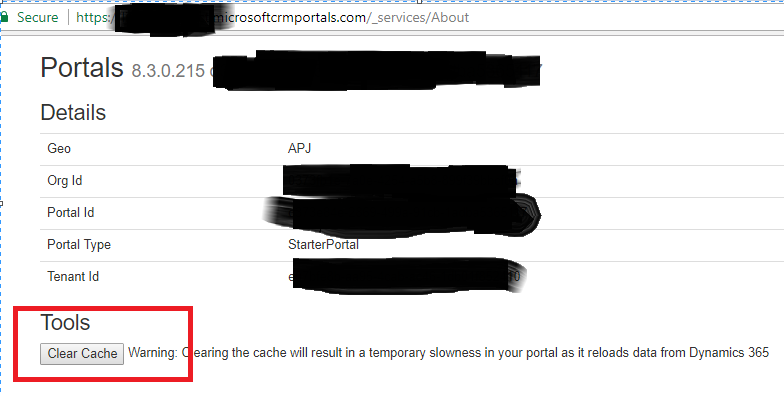
Sometime if we do any changes in Dynamics CRM portal it wont get reflected immediately . This is due to cache .If we do clear the browser cache also it wont get reflected. For this we need to restart the portal from the O365 console. There is a easy way to clear cache without restarting server or browser.

Step 1: Navigate to your portal url

https://yourOrganizationname.microsoftcrmportals.com

Step 2: Add _services/About to the url

https://yourOrganizationname.microsoftcrmportals.com/_services/About

Step 3: Click the "clear cache"


Step 4: Refresh the Url tab. you can see the client side changes made.


Friday, 31 March 2017

Rename social panel Notes tab in CRM 2016/Dynamics 365

Rename social panel Notes tab as Attachments in CRM 2016/Dynamics 365

  • Create new solution
  • Add existing - Note to that solution
  • Export Translation to that solution
  • Unzip the file and rename the "LocalizedCollectionName" 
  • Rename Notes as "Attachements" 
  • Now zip the files in the directory with the changes
  • Import the Translations
  • Publish All Customization


Note: It supports almost all the versions of on premise and online


Wednesday, 8 March 2017

How to get/display Current logged-in User name in Dynamics CRM Portal

How to get/display Current logged-in User name in CRM Portal


This is generic requirement to say welcome message to the logged-in user on any portal.If portal user is logged-in user it will show their name and if not will show as guest user.


{% if user %}
  Hello, {{ user.lastname }}!
{% else %}

Welcome Guest{{user.anonymous}}!
{% endif %}